How to Set Up a VPN on Different Devices: A Step-by-Step Guide
Learn how to set up a VPN on various devices with this comprehensive guide, ensuring secure browsing across Windows, Mac, and mobile platforms.
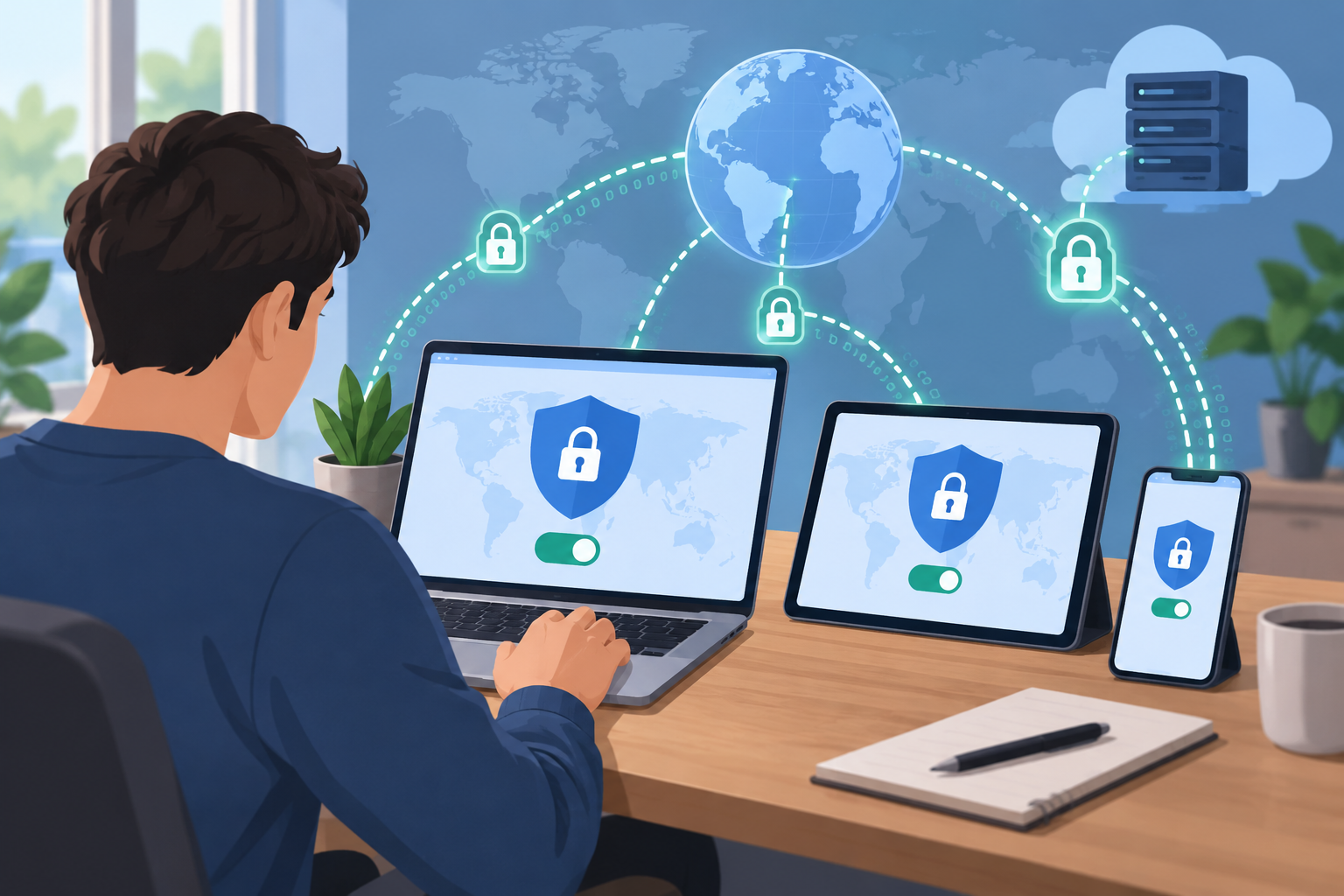
Introduction to VPN Setup
Setting up a VPN (Virtual Private Network) is an essential step in securing your online activities. Whether you want to protect your privacy, access geo-restricted content, or enhance your security on public Wi-Fi, knowing how to set up a VPN is crucial. This guide will walk you through the VPN installation process on various devices, ensuring you understand the steps involved for seamless connectivity.
Setting Up a VPN on Windows
Setting up a VPN on a Windows device is straightforward. Follow these steps to ensure a smooth installation:
Step 1: Choose a VPN Provider
Before starting, choose a reliable VPN service that meets your needs. Consider factors like speed, security features, and server locations.
Step 2: Download the VPN Software
- Visit the official website of your chosen VPN provider.
- Download the Windows application and install it by following the on-screen prompts.
Step 3: Log In to Your Account
After installation, open the application and log in using your account credentials.
Step 4: Select a Server
Choose a server from the list provided by your VPN. Opt for a location that meets your needs, whether for speed or access to specific content.
Step 5: Connect to the VPN
Click the “Connect” button. Once connected, your internet traffic will be routed through the VPN, enhancing your security.
Installing a VPN on Mac OS
Setting up a VPN on Mac OS is quite similar to the Windows process. Here’s how:
Step 1: Choose a VPN Provider
Select a reputable VPN service that offers a Mac-compatible application.
Step 2: Download and Install the VPN
- Go to your chosen VPN provider’s website.
- Download the Mac version of their application and install it by dragging it to your Applications folder.
Step 3: Log In to Your VPN Account
Open the application and sign in using your credentials.
Step 4: Choose a Server
Browse through the server list and select a preferred location.
Step 5: Connect to the VPN
Press the “Connect” button to establish a secure connection. You can now enjoy protected browsing on your Mac.
Configuring a VPN on Mobile Devices
Setting up a VPN on mobile devices, such as smartphones and tablets, is essential for on-the-go security. Follow these steps for both iOS and Android:
For iOS Devices
- Download the VPN App: Navigate to the App Store, search for your VPN provider, and download the app.
- Install and Open the App: Follow the installation prompts and open the app.
- Log In: Enter your account details to log in.
- Select a Server: Choose a server from the list.
- Connect: Tap the “Connect” button to secure your connection.
For Android Devices
- Download the VPN App: Go to Google Play Store, search for your VPN service, and install the app.
- Install and Open the App: Complete the installation and launch the application.
- Log In: Use your credentials to log in.
- Select a Server: Pick a server from the available options.
- Connect: Hit the “Connect” button to start using the VPN.
Troubleshooting Common Setup Issues
Even with detailed instructions, you may encounter some issues during the VPN setup process. Here are some common problems and their solutions:
Issue 1: Connection Failures
- Solution: Ensure your internet connection is stable. Try restarting your router or switching to a different server.
Issue 2: Slow Speeds
- Solution: Connect to a server closer to your physical location to improve speed. Also, ensure your device isn’t running bandwidth-heavy applications.
Issue 3: App Crashes
- Solution: Check for updates to the VPN application. If the issue persists, uninstall and reinstall the app.
Issue 4: Unable to Access Certain Websites
- Solution: Some websites may block VPN traffic. Try connecting to a different server to bypass these restrictions.
Conclusion: Enjoying Secure Browsing
Setting up a VPN is a vital step in securing your online activities across various devices. By following this guide, you can confidently set up a VPN on Windows, Mac, and mobile devices. Enjoy the peace of mind that comes with secure browsing and protecting your personal information. For more tips and resources, check out IngenioVPN plans or visit our blog for further insights.
FAQs
- What is a VPN and why do I need one?
A VPN encrypts your internet connection, providing privacy and security while browsing online. It's particularly useful on public Wi-Fi networks.
- Can I use a free VPN service?
While free VPNs are available, they may have limitations on speed, data usage, and security features. Consider investing in a reputable paid VPN service for better protection.
- Will a VPN slow down my internet speed?
Some slowdown may occur due to encryption processes, but a high-quality VPN should minimize this impact. Choose a fast VPN provider to reduce speed loss.
- Is it legal to use a VPN?
Yes, using a VPN is legal in most countries; however, some jurisdictions may have restrictions. Always check local laws regarding VPN usage.
- Can I use a VPN on multiple devices?
Most VPN services allow multiple simultaneous connections. Check your provider’s policy to see how many devices you can connect at once.
- What should I do if I forget my VPN password?
Use the password recovery option provided by your VPN service to reset your password. Always keep your account credentials secure.
Frequently asked questions
Related articles

Understanding VPN Logs: What You Need to Know
Explore the essential aspects of VPN logs, their impact on data privacy, and how to choose a VPN that prioritizes your online security.

Understanding the Role of VPNs in Preventing Bandwidth Throttling
Discover how VPNs can help prevent bandwidth throttling and enhance your internet experience, especially for remote work.

How to Use a VPN for Safe Online Gaming
Discover how to enhance your online gaming experience with a VPN, ensuring security and privacy while enjoying your favorite games.